How to use QuothGM›Pushes
Pushes
Show your players what you want, when you want, with one tap.
A push is the GM showing something to one or more players, in the moment, with one tap. The codex entry, scene, or note appears on their phone — exactly what you wanted them to see, exactly when you wanted them to see it. Below: the six things you'll do most.
Push a codex entry to the whole party
When you’d do this: When the party meets a character, finds a place, or learns about a faction — anything they should keep.
- 1.
Open the codex entry you want to push.
- 2.
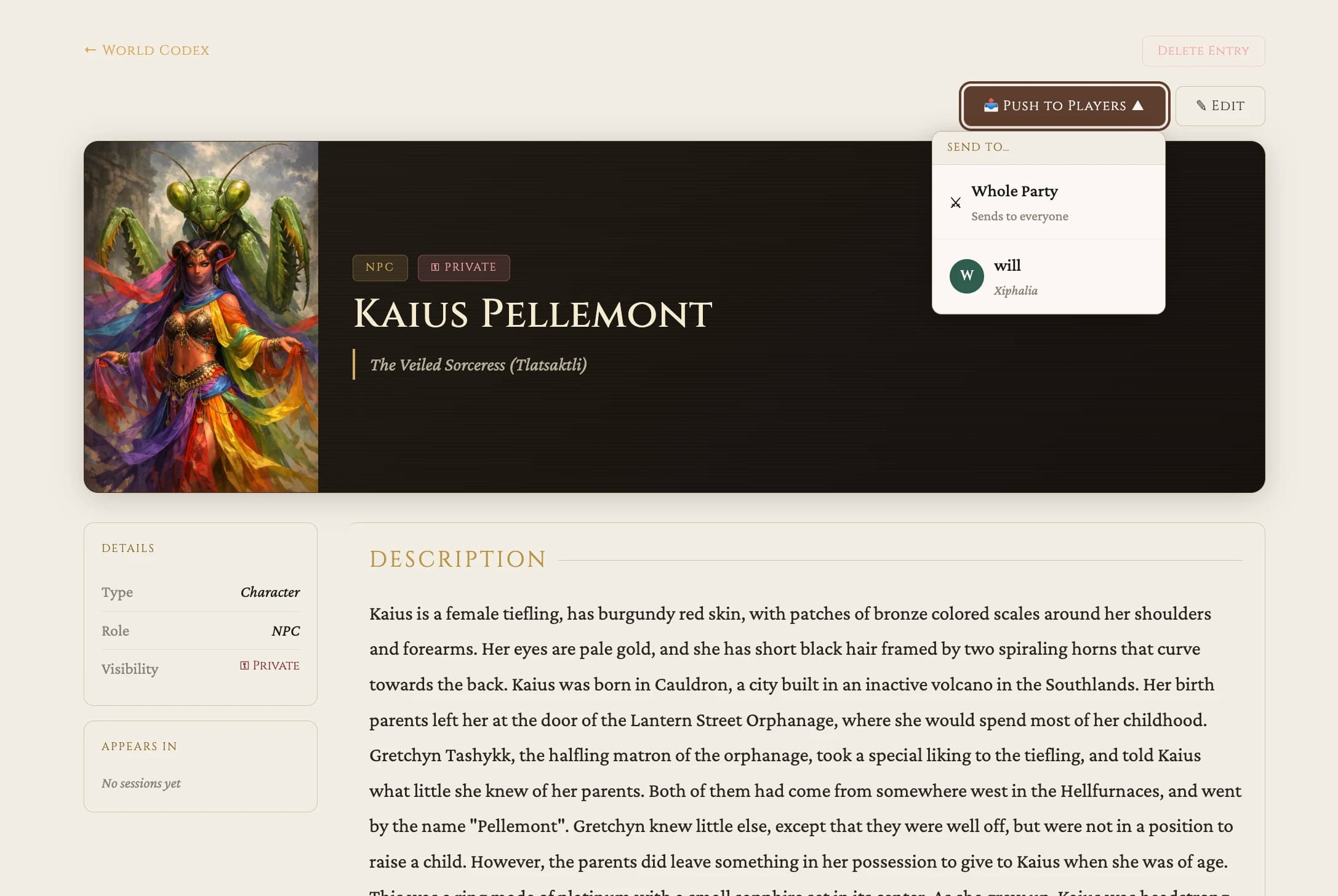
Tap the "📤 Push to Players ▾" button at the top right of the entry.
- 3.
In the Send to picker, choose "Whole Party."
- 4.
The entry lands in every player's codex. They get a notification right now, and the entry stays in their codex permanently.
Push to one player only
When you’d do this: When the rogue spots the secret door, the ranger reads the tracks, the wizard recognizes the symbols.
- 1.
Open the entry, scene, or note you want to push.
- 2.
Tap "📤 Push to Players ▾".
- 3.
In the Send to picker, choose a single player by name instead of "Whole Party".
- 4.
Only that player sees it. The other players don't know a push happened.
Try the picker — pick a target to see what your players see.
Push a scene
When you’d do this: The party kicks the door open and you want them to see the throne room — image, read-aloud, the moment.
- 1.
Open the scene from inside the session — either while planning, or live during run mode.
- 2.
Tap "📤 Push to Players ▾" on the scene.
- 3.
Choose "Whole Party" or a single player.
- 4.
The scene image and read-aloud appear in the player's session view. If the session is live, a toast lands on top of their screen.
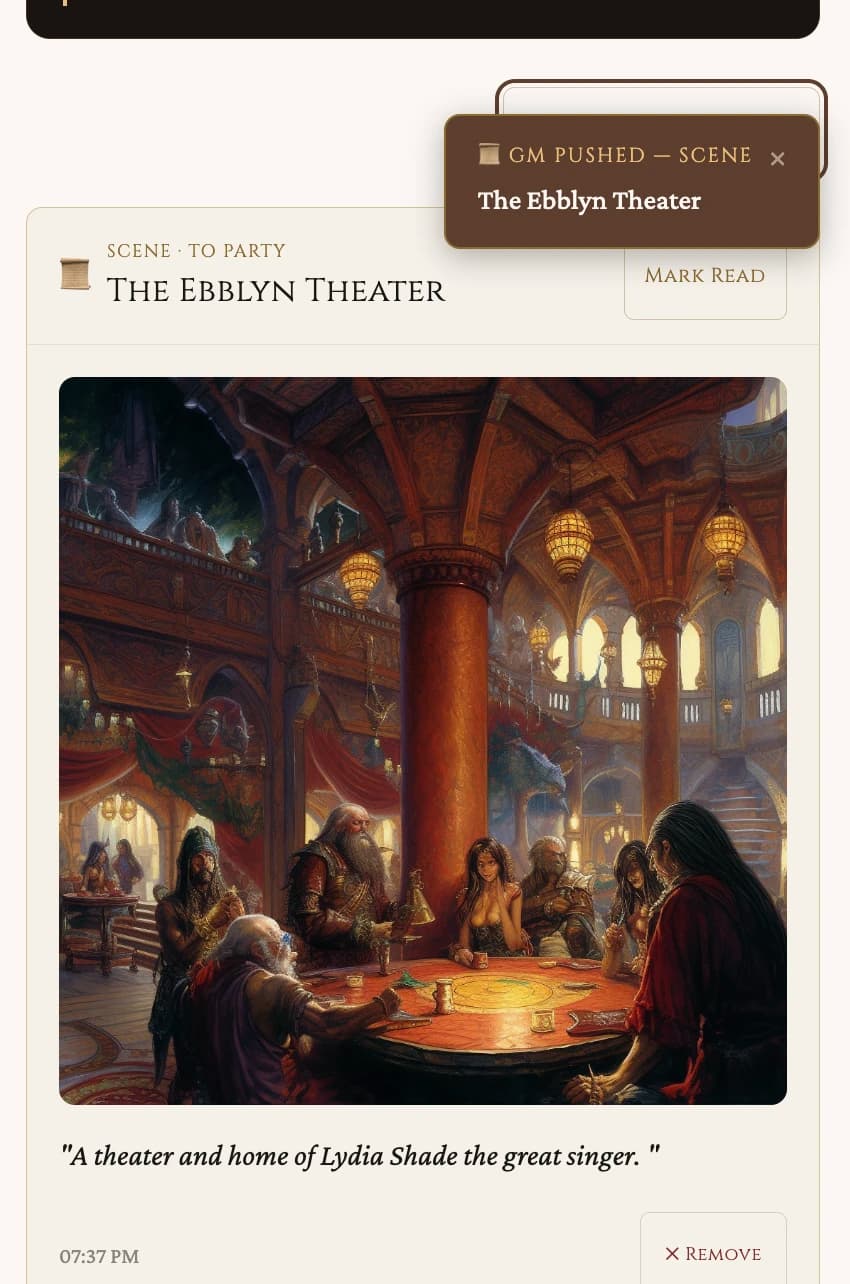
In run mode you also get a per-scene shortcut button on each active scene — same picker, faster reach when the table is moving.
Send a quick note
When you’d do this: For words you type in the moment — "the orcs are flanking you," "you hear footsteps behind the door."
- 1.
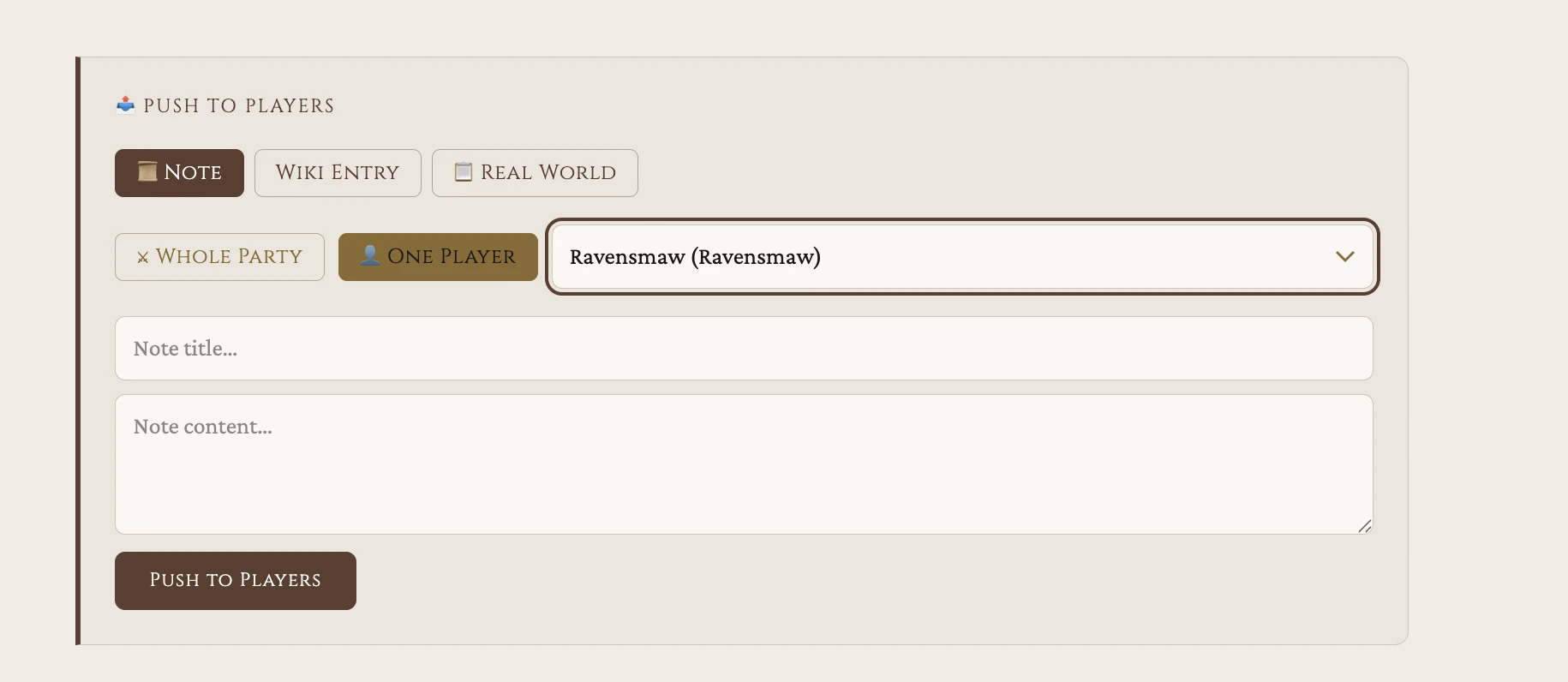
From the session view, find the "📤 Push to Players" composer.
- 2.
Choose the "📜 Note" tab.
- 3.
Pick "⚔ Whole Party" or "👤 One Player" — and if it's one player, choose them from the dropdown that appears.
- 4.
Type a title (required) and the body (optional). Tap "Push to Players". The note arrives in their session view.
Send a real-world push
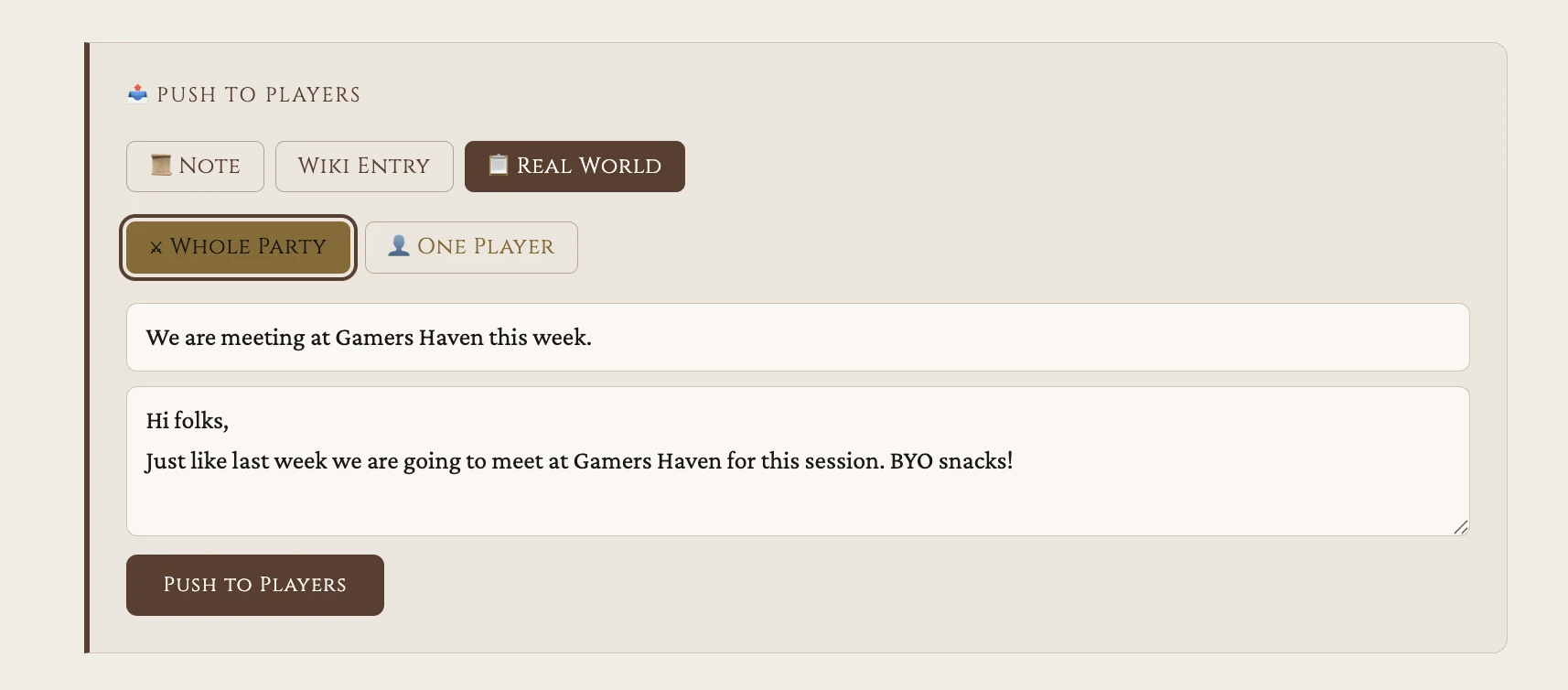
When you’d do this: For the table's logistics — "Meeting at Gamers Haven this week," "Pizza's here," "Thirty-minute break." Use this for anything that's not in-fiction.
- 1.
Open the "📤 Push to Players" composer from the session view.
- 2.
Choose the "📋 Real World" tab.
- 3.
Pick "⚔ Whole Party" or "👤 One Player".
- 4.
Type your title and message. Tap "Push to Players".
COMING SOON
Push notification emails — for players who aren't currently looking at their phone, a real-world push will also arrive by email.
Take a push back
When you’d do this: Plans changed. The clue went to the wrong player. The information no longer applies.
- 1.
For a codex entry push: Open the entry, set its visibility to "GM Only," and Save. QuothGM will ask you to confirm — the modal heading reads "Revoke player access?" Tap "Make GM Only." The entry stays in your world; the players who had access lose it.
- 2.
For a scene or note push: These are moments. Once a scene or note push is sent, you cannot retract it from the GM side. Players can dismiss it from their own update feed; you can push a correction.
Visibility
Revoke player access?
“Erathmir the Innkeeper”
Players who currently have access to this entry will lose it. The entry itself will not be deleted.
RELATED HOW-TOS