How to use QuothGM›Add Players to Campaigns
Add Players to Campaigns
Invite players by email, assign their characters, get them to the table.
Invite a player to your campaign
When you’d do this: When a friend's joining the table — or your party just got bigger.
- 1.
Open your campaign. The Party & Players section sits between the campaign hero and Upcoming Sessions. Tap Manage to open the panel.
- 2.
Below any existing party members, find the
Add a Player by Emailfield. - 3.
Type your player’s email address. Use the email your player will sign up with. Confirm email before you tap Send. Tap the brown
+ Addbutton. - 4.
QuothGM shows you a confirmation. If the email isn’t tied to a QuothGM account yet, the modal explains what’s about to happen — "We’ll email them a magic-link invitation. They’ll join automatically when they sign in." Tap
Send Invitation. - 5.
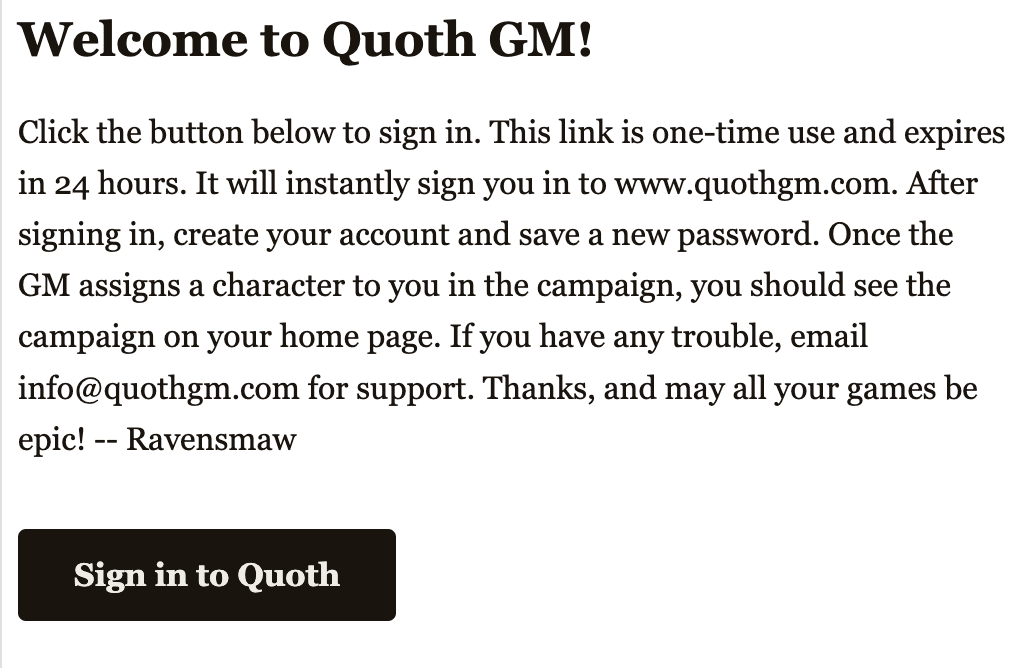
The player gets an email titled "Welcome to QuothGM!" with a single button:
Sign in to QuothGM. The link is good for 24 hours and one use only.
IF YOU'D RATHER CREATE THE CHARACTER FIRST
You can. Open your codex, create the PC, and come back here when you’re ready to invite the player. You’ll assign the existing character to them in Task II.
YOU CAN ALSO DO THIS FROM THE CAMPAIGN EDITOR
The same Party Members panel lives on the campaign edit page. The campaign view path is more direct, but if you’re already editing the campaign, the panel is right there.
Assign their character
When you’d do this: Once your player has a character, the campaign is fully theirs — their character card appears, and they’re ready to play.
- 1.
In the Party Members panel, find the player’s row. Under their name you’ll see a
+ Assign characterbutton. - 2.
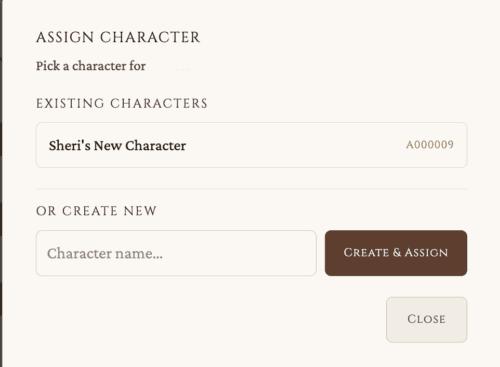
Tap it. Choose an existing character from the codex, or create a new one for them on the spot.
- 3.
The player’s row updates to show "plays [Character Name]". Next time they refresh their campaign view, their character card appears at the top.
…and the modal that opens.
A NOTE ON TIMING
Your player is technically on the campaign the moment they sign in — they don’t need a character to be there. However, they need a character to see the campaign.
What your player sees when they sign in
When you’d do this: Knowing what your player’s looking at makes you a better GM at the table.
- 1.
The player clicks
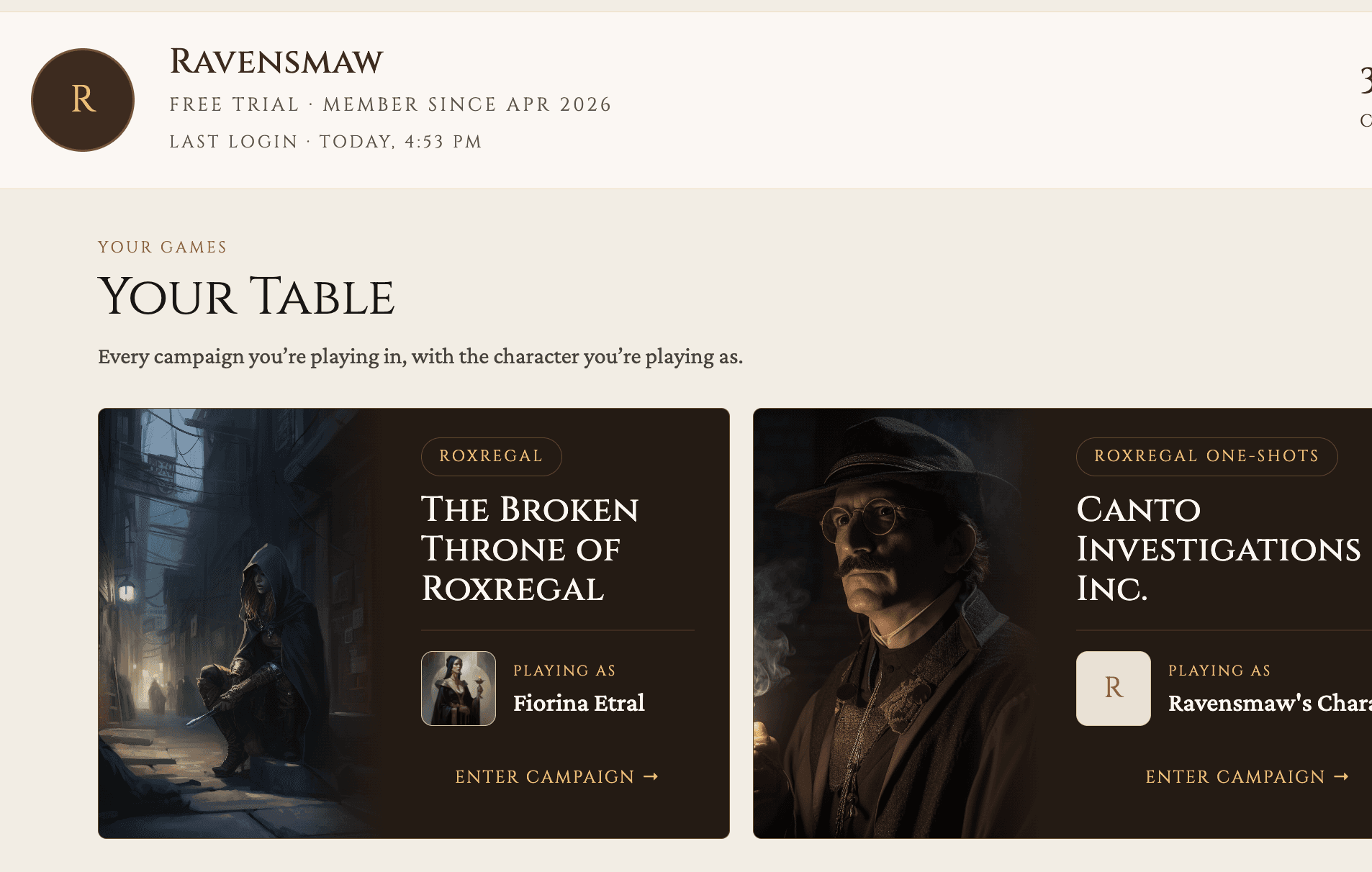
Sign in to QuothGMin their email. QuothGM signs them in and lands them on Your Table — the home page where every campaign they’re part of appears as a card. - 2.
Their display name will be the part of their email before the @ until they update their profile. So alice@example.com shows up as "alice" until she changes it.
Take a player off the campaign
When you’d do this: A player drops out, schedules change, you need to reshape the table.
- 1.
In the Party Members panel, find the player’s row.
- 2.
Tap the
Removebutton on the right side of the row. - 3.
QuothGM asks you to confirm — "Remove [player name] from [campaign]? They’ll lose access to the campaign immediately." Tap
Remove Playerto confirm, orCancelto keep them. - 4.
If the player is still pending (they haven’t accepted the invite yet), the same flow applies — tap
Cancelon their row, confirm in the modal, and the pending invitation is withdrawn.
Remove Roy from The Battle for Oerth? They'll lose access to the campaign immediately. Their character stays in your codex; you can re-invite them later.
WHAT THE PLAYER EXPERIENCES
Once you confirm the removal, the campaign disappears from their Your Table page on next refresh. Their session notes go with the campaign; their character stays in the codex (unassigned, available to assign to someone else later). If you change your mind, you can re-invite them with the same email and they’ll come back.
RELATED HOW-TOS